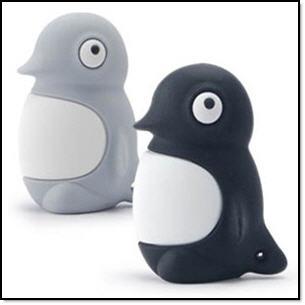
Active Media Products just released the perfect gift for Linux nerds young and old.
The actual product wasn't made with Linux users in mind. Active Media teamed up with the WWF ( World Wildlife Fund) to make a bunch of USB drives themed after endangered animals. A portion of the proceeds from sales will go to the WWF to help stop cute animals such as Penguin from dying out.
There are four different versions of the Penguin USB drive available; 2GB, 4GB, 8GB, and 16GB versions. The 8GB version will retail for around $26 dollars, and all versions are available right now from Amazon.com and other retailers.
Linux divides its physical RAM (random access memory) into chucks of memory called pages. Swapping is the process whereby a page of memory is copied to the preconfigured space on the hard disk, called swap space, to free up that page of memory. The combined sizes of the physical memory and the swap space is the amount of virtual memory available.
Swapping is necessary for two important reasons. First, when the system requires more memory than is physically available, the kernel swaps out less used pages and gives memory to the current application (process) that needs the memory immediately. Second, a significant number of the pages used by an application during its startup phase may only be used for initialization and then never used again. The system can swap out those pages and free the memory for other applications or even for the disk cache.
Steps to create swap file
1. Use the "dd" command to create a file.
dd if=/dev/zero of=/aSwapFile bs=1024 count=65536
where dd: - is used to copy a specified number of bytes from an Input file (if) to an Output file (of). Here the dd command copy null characters from the special file "/dev/zero" and copy it to the output file "aSwapFile" in the "/" directory. The "bs" specifies that the characters are read as BYTES. The "count" specifies the size of the bytes block that is to be created in the output file.
2. Use the "mkswap" command to set up the Linux swap area on the file created.
mkswap /aSwapFile
3. Use the "swapon" command to activate the swap file created.
swapon /aSwapFile
4. Edit the fstab "/etc/fstab" to enable the swap after a reboot.
vi /etc/fstab (Add the following line to the fstab file.) /aSwapFile swap swap defaults 0 0
Batch file renaming can be pretty handy as it saves loads of time when you have to rename thousands of files. There are many simple ways to do it though.
If you have files with same ending pattern it can be done as:
e.g. if you want all .htm to be renamed to .html
rename .htm .html *.htm
and On other Unixes, we'd have to do something like this to batch rename files:
for i in *.html do j=`echo $i | sed 's/.htm$/.html/'` # or, in this simple case even just: j=$"i"l mv $i $j done
Though if we had bash or ksh, we could make that a little less cumbersome:
for i in *.htm do j=${i%.htm}.html # or: j=${i}l mv $i $j done
The Linux "rename" isn't going to handle to more complex cases though. For example, I had to transfer mail files from one system to another recently. On the old system, each message would be named something like "1124993500.7359464636.e-smith". On the new system, they'd be "00000001.eml", with hexadecimal numbering going on up, so you'd get "00000009.eml" and the next message would be "0000000a.eml", and so on. There's no way for "rename" to do that, but a loop can:
for i in * do j=`printf "%0.9x.eml\n" $x` mv $i $j x=$((x+1)) done
And if you dont want to follow any pattern and simply add new extension to all the files in a directory:
for i in $(ls -lArt /path/to/directory |awk '{print $9}');do mv $i $i.txt; done
adding to it if files are placed recursively in directories:
for i in $(find /path/to/root -type f -print);do mv $i $i.txt; done
-h Show a help screen and exit.
-V Show copyright information and exit.
-d Turn on indirect block detection, this works well for Unix file systems.
-T Time stamp the output directory so you don’t have to delete the output dir when running multiple times.
-v Enables verbose mode. This causes more information regarding the current state of the program to be dis-played on the screen, and is highly recommended.
-q Enables quick mode. In quick mode, only the start of each sector is searched for matching headers. That is,the header is searched only up to the length of the longest header. The rest of the sector, usually about 500 bytes, is ignored. This mode makes foremost run con- siderably faster, but it may cause you to miss files that are embedded in other files. For example, using quick mode you will not be able to find JPEG images embedded in Microsoft Word documents.
Quick mode should not be used when examining NTFS file systems. Because NTFS will store small files inside the Master File Table, these files will be missed during quick mode.
-Q Enables Quiet mode. Most error messages will be sup-pressed.
-w Enables write audit only mode. No files will be extracted.
-a Enables write all headers, perform no error detection in terms of corrupted files.
-b number Allows you to specify the block size used in foremost. This is relevant for file naming and quick searches. The default is 512. ie. foremost -b 1024 image.dd
-k number Allows you to specify the chunk size used in foremost.This can improve speed if you have enough RAM to fit the image in. It reduces the checking that occurs between chunks of the buffer. For example if you had > 500MB of RAM. ie. foremost -k 500 image.dd
-i file The file is used as the input file. If no input file is specified or the input file cannot be read then stdin is used.
-o directory Recovered files are written to the directory directory.
-c file Sets the configuration file to use. If none is speci-fied, the file “foremost.conf” from the current direc-tory is used, if that doesn’t exist then “/etc/fore-most.conf” is used. The format for the configuration file is described in the default configuration file included with this program. See the CONFIGURATION FILE section below for more information.
-s number Skips number blocks in the input file before beginning the search for headers. ie. foremost -s 512 -t jpeg -i /dev/hda1
Foremost examples
Search for jpeg format skipping the first 100 blocks
sudo foremost -s 100 -t jpg -i image.dd
Only generate an audit file, and print to the screen (verbose mode)
sudo foremost -av image.dd
Search all defined types
sudo foremost -t all -i image.dd
Search for gif and pdf
sudo foremost -t gif,pdf -i image.dd
Search for office documents and jpeg files in a Unix file sys-tem in verbose mode.
sudo foremost -v -t ole,jpeg -i image.dd
Run the default case
sudo foremost image.dd
image.dd means you need to enter your hardisk mount point i.e /dev/sda1 or /dev/sda2
Although there's no common "undelete" command for a Linux EXT3 file system, you can recover many types of accidentally erased files, including documents, graphics, and system files using the "Foremost" console application.
When you delete a file, the data is not really overwritten. The pointer in the filesystem to the file is simply removed so the disk area can be overwritten when necessary. The more the disk is written to after the file is deleted, the larger the chance it will be overwritten and become unrecoverable. Foremost is a command line utility for finding and recovering deleted files based on their type. It was origionally developed for the US Air Force Office of Special Investigations. It can recover files from a number of filesystems, including fat, ext3 and NTFS. It can be installed and run from the live cd.
Foremost can recover files with the following extensions: jpg, gif, png, bmp, avi ,exe, mpg, wav, riff, wmv, mov, pdf, ole, Excel, Access, doc, zip, XML, SXW, SXC, SXI, SX, rar, htm, cpp
For other file extensionswe may need to edit /etc/foremost.conf which can be found in man page of Foremost (man foremost)
How to Install:
Enable the universe repository and install foremost:
sudo apt-get install foremost
Assuming the lost files are on a USB drive (sda), you need to create a writeable directory on another drive where you can put the recovered files
sudo mount /dev/sdb1 /recovery sudo mkdir /recovery/foremost
And then run foremost:
sudo foremost -i /dev/sda -o /recovery/foremost
or for specific file format e.g. video (avi):
sudo foremost -t avi -i /dev/sda -o /recovery/foremost
The recovered files will then be owned by root. Change their ownership so that you can use them:
If you hate logging in every time you reboot your computer, you can easily configure Suse to automatically log you in when you start your computer. Or you can disable it if you are worried about security.
Suse Linux has an amazing set of graphical administration tools that let you perform virtually any system administration task without having to use a command line. The only problem is that there are just so many settings, it's easy for new users to get lost.
To get to this setting, click that green Suse "start" button, and type in user management into the search box, and select the highlighted option below.
Note that if you are using KDE style menus, you can launch YaST, click Security and Users, and then click User Management.
Click the Expert Options drop-down button, and select Login Settings:
Now you can check or uncheck the Auto Login checkbox, and choose the user that you want to automatically login.
In my case, I was disabling Auto Login. I prefer security, and it's not like I have to reboot linux very often.
In the era of high definition videos everywhere (Metacafe, YouTube, etc.), only the truly linux junkie would decide to watch their movies in ASCII text in a terminal window. The surprising thing is that some videos are even fairly watchable.
I've found that cartoons work best because of the limited detail.
Watch Movies in ASCII
The first thing you'll want to do is make sure that mplayer is installed, which is easy enough from the command line:
sudo apt-get install mplayer
Then, to actually watch the movies from a terminal window, use the following syntax, replacing MovieName with the filename of your video.
mplayer -vo caca MovieName.avi
The "caca" command is actually the color text driver - you could also use " -vo aa " instead for black & white, but that would just be silly.
These screenshots don't really do it justice - it's seriously just as bad when you're watching.
Sequences with a lot of contrast work better…
And it wouldn't help to sit about 8 feet back from the monitor.
Every time I connect to my Ubuntu server through putty, I get to see the default message which is kind of scary. Here's the message that I get every time:
Linux trap 2.6.9-67.0.1.ELsmp #1 SMP Fri Nov 30 11:51:05 EST 2007 i686 i686 i386 GNU/Linux
The programs included with the Ubuntu system are free software; the exact distribution terms for each program are described in the individual files in /usr/share/doc/*/copyright.
Ubuntu comes with ABSOLUTELY NO WARRANTY, to the extent permitted by applicable law.
Last login: Mon Aug 13 01:05:46 2007 from XX.XX.XX.XX
nix@trap:~$
Changing this message requires editing two different files. The first three sections can be modified by editing the following file:
/etc/motd
This file contains the linux build number as well as the Ubuntu warranty message. I don't find this particularly useful, so I removed all of it and replaced it with my own message.
To disable the last login message (which I don't recommend doing), you will need to edit the following file in sudo mode:
/etc/ssh/sshd_config
Find this line in the file and change the yes to no as shown:
PrintLastLog no
Now when you login, you'll get a blank prompt, although I wouldn't necessarily recommend it because it's useful to see the last login to the system for security reasons. This is my prompt now:
This is development system.
Last login: Mon Apr 20 12:47:36 2009 from XX.XX.XX.XX nix@trap:~$
Nintendo soon will be releasing a peripheral called MotionPlus. This small device attaches to the bottom of the Wii-mote and acts as a more sophisticated motion-sensor to the controller as it currently stands. Its goal is to bring greater parity between a user's movements and the animations that they bring to life on-screen.
Gameplayer got some hands-on time with the device, and they are extremely impressed." The MotionPlus will only affect new games; Nintendo has said they have no plans to add support for older titles. Virtua Tennis 2009 will be the first game to support it, and Eurogamer has a look at the game both with and without the MotionPlus.
From Official Site:
Nintendo's upcoming Wii MotionPlus accessory for the revolutionary Wii Remote controller again redefines game control, by more quickly and accurately reflecting motions in a 3-D space. The Wii MotionPlus accessory attaches to the end of the Wii Remote and .. (more)
Usually the fastest way to get things done is using the keyboard only if possible. If you take the time to memorize commands and keyboard short-cuts you are often able to do your work with quick keystrokes rather that aiming the mouse pointer at buttons and menu items. That is way experts often prefer editors like Emacs and VI.
The following is a selection of Linux-based Web browsers. Applications with free versions (indicated as [Free]) are listed before commercial programs. Note: Freeware and GNU Library General Public License often come with restrictions. Users should check copyright and licensing statements from the developers.
Amaya [Free] Amaya is a Web browser as well as a Web editor, which creates and updates documents directly on the Web. Its browsing, editing and remote access features are seamlessly integrated in a uniform environment. Amaya is W3C's test bed cross-platform editor/browser. Platform: Independent.
Emacs/W3 [Free] Emacs W3-mode is a full-featured web browser, supporting all the bells and whistles you will find in use on the web today, including frames, tables, style sheets, and much more. Platform: Linux / Unix, Windows, DOS, OS/2, and VMS.
Epiphany [Free] As its name (meaning "an intuitive grasp of reality through something simple and striking") indicates, Epiphany, though based on the Mozilla rendering engine, aims to utilize a much simpler and less bloated interface. It also has standards compliance and GNOME integration. Platform: Linux / Unix.
Firefox [Free] The most popular open source web browser. Available for all major operating systems and included in all major Linux distributions. Numerous extensions are available.
Galeon [Free] Galeon is a GNOME web browser based on gecko (mozilla rendering engine). It's fast, it has a light interface and it is full standards compliant. It requires current Mozilla sources to build. Platform: Linux / Unix.
HotJava (Free for non-commercial use) The HotJava Browser provides a highly-customizable modular solution for creating and deploying Web-enabled applications across a wide array of environments and devices. Using HotJava on Solaris for SPARC and JavaStation is officially supported by Sun. But you can also download an unsupported version of HotJava of Linux.
Konqueror [Free] Konqueror is a full-featured Web browser, supporting Java applets, JavaScript, CSS1 and (partially) CSS2, as well as Netscape plugins. It is also the file manager for the K Desktop Environment. It supports basic file management on local Unix filesystems, as well as remote and local network file browsing.
Lynx [Free] Lynx is a text based web browser. Platform: Linux / Unix.
Mozilla [Free] Mozilla is an open-source web browser, designed for standards-compliance, performance and portability. Platform: Linux / Unix, MacOS X, Windows.
Netscape Navigator [Free] The latest version of Netscape is certified and supported on Red Hat Linux. But you can find a version of Netscape for other distributions of Linux, too.
Opera for Linux For those of you who love Opera as your PC browser, here is an informative Web site with articles and illustrated guides for using Opera on Linux.
Plug-in: Adobe Acrobat Reader [Free] Adobe Acrobat Reader lets you view and print Adobe Portable Document Format (PDF) files as well as fill in and submit Adobe PDF forms online. Platform: Linux / Unix, Windows, etc.
WebCon [Free] WebCon is a simple Web console tool that allows you to perform any HTTP operations automatically, like posting data, saving data, deleting documents, etc. Platform: Linux / Unix.
Read the track artist instead of album artist in Musicbrain3
Don't crash if the release date is unknown
Read tracks when falling back to gvfs
Finally, a call for someone with deep LAME knowledge. The GStreamer LAME element is, well, lame because it sets a number of properties to default values that make it very difficult for LAME to work well. Someone who understands how all of the LAME settings operate needs to sit down, vet the settings and remove the pointless ones, unset most of the rest, leaving the 'preset' setting as the only one which has a default value. At the moment there are many contradictory default settings which mean LAME produces rather badly encoded files. Any takers?
For people who have recently migrated from MS boxes to Nix ones have a habit of using Ctrl+Alt+Del keys for popping up Task Manager or to simply lock the workstation but using that combination on Linux box is hazardous as it shuts down the machine.
So I recommend on disabling Ctrl+Alt+Del keys on your workstation, even on production systems it is recommended that you disable it
It is configured using /etc/inittab (used by sysv-compatible init process) file. The inittab file describes which processes are started at bootup and during normal operation. You need to open this file and remove (or comment it) ctrlaltdel entry.
Ctrlaltdel specifies the process that will be executed when init receives the SIGINT signal. SIGINT is the symbolic name for the signal thrown by computer programs when a user wishes to interrupt the process, for example reboot/shutdown system using [Ctrl]-[Alt]-[Del].). This means that someone on the system console has pressed the CTRL-ALT-DEL key combination. Typically one wants to execute some sort of shutdown either to get into single-user level or to reboot the machine.
How-To disable Ctrl+Alt+Del Keys:
Open /etc/inittab file, enter: # vi /etc/inittab
Search for line that read as follows: ca:12345:ctrlaltdel:/sbin/shutdown -t1 -a -r now
And remove the line or comment out the above line by putting a hash mark (#) in front of it: # ca:12345:ctrlaltdel:/sbin/shutdown -t1 -a -r now
Save the file and exit to shell promot. Reboot system to take effect or type command: # init q
For some applications it is very common to create temporary files or we can say cache files periodically, which if not removed regularly can consume a lot of disk space unnecessarily. Here is a tip which will save you from wondering how to find and get rid of these.
1. Here's a simple script to find and calculate total size of the files found if you just want to know if these exist under your application or not:
2. That was just to keep a check on log files and track on daily addition of cache files with respect to nuber and size. If this all seems crap to you and you just want to get rid of these without any intimation here's a one liner for you:
More and more IT Vendors are validating the benefits of desktop and server virtualization, from energy efficiency to better resource utilization. But if you’re still leery of forking over big dollars for the technology, there are some low-cost and no-cost ways to give virtualization a try.
Virtualization freebies are available both from the open source community and from vendors such as Microsoft and VMware. Here’s a sampling:
A virtualization environment for Windows Server 2003, Windows Server 2003 Service Pack 1, Windows XP Professional Edition and Windows XP Service Pack 2. It works on x86 servers or workstations and is available in 32- or 64-bit versions.
Linux-based software that lets the IT administrator create secure virtual environments. Each virtual private server can be rebooted independently, co-existing with other virtual private servers.
The open source project is supported by SWsoft, which markets a commercial version called Virtuozzo.
Open source software for running Windows or Linux on a Macintosh. It allows users to switch between guest PCs and restart guest PCs at any point. Q also enables users to exchange files between the host operating system and the guest.
Q is based on the QEMU open source CPU emulator. You need to be careful about using Q – according to the Web site, it is still alpha software.
A generic and open source machine emulator and virtualization software developed by Fabrice Bellard, the author of a compact C compiler. QEMU can run operating systems and programs developed for one machine on a different machine.
When used as virtualization software, the host and guest machine must use x86-compatible processors. In emulation mode, it supports x86 PFCs, MIPS R4000, Sun SPARC and PowerPC processors.
Technical Architecture Solutions, a disaster recovery and business continuity consultancy, is offering a TCO Calculator for server virtualization. It is Web-based and allows IT administrators to estimate how much money they will save by using VMware ESX. The calculator consists of a Microsoft Excel spreadsheet and is based on four virtual machines per virtual server.
VMware Server is VMware’s starter kit for Windows and Linux server virtualization. It can host Windows, Linux, NetWare and Solaris as guest operating systems.
VMware Player lets IT administrators run virtual machine instances created by other VMware products. With it, you can download prebuilt virtual machines from the VMware Technology Network or share them with other organizations.
Virtual Iron’s Single Server Virtualization and Management software creates Linux or Windows virtual servers. It runs in 32- and 64-bit workloads that are stored on iSCSI, storage-area networks or local storage. Virtualized nodes created with Virtual Iron’s Single Server software must have Intel Virtualization Technology or AMD Virtualization hardware assist.
An alternative to terminal services environments and fat-client desktop implementations. It lets an IT administrator host five individual Windows desktop PCs inside virtual machines running on servers in the data center.
This open source package for x86 server virtualization was developed by the University of Cambridge and commercialized by XenSource. Xen, which runs on Linux, supports Windows and Linux as guest operating systems.
XenExpress, from XenSource, is a free virtualization package for x86 servers that lets IT administrators host as many as four virtual machines on servers equipped with 4GB of physical RAM or two physical sockets.
It supports Windows Server 2003, Windows XP and Windows 2000 as guest operating systems. It also supports Red Hat, SUSE and Debian Linux guest operating systems.
XenExpress is based on the open source Xen hypervisor.
Obviously, there is a problem with your drive. These commands are failing because the kernel is unable to load the /sbin/reboot and /sbin/shutdown binaries from the disk so that it can execute them.
A fsck on the next boot might be able to correct whatever is wrong with the disk, but first you need to get the system to reboot. If your machine is located at a managed hosting provider then you could submit a reboot ticket, but you'll have to wait for someone to take responsibility.
Wouldn't it be nice if there was a way to ask the kernel to reboot without needing to access the failing drive? Well, there is a way, and it is remarkably simple.
The "magic SysRq key" provides a way to send commands directly to the kernel through the /proc filesystem. It is enabled via a kernel compile time option, CONFIG_MAGIC_SYSRQ, which seems to be standard on most distributions. First you must activate the magic SysRq option:
echo 1 > /proc/sys/kernel/sysrq
When you are ready to reboot the machine simply run the following:
echo b > /proc/sysrq-trigger
This does not attempt to unmount or sync filesystems, so it should only be used when absolutely necessary, but if your drive is already failing then that may not be a concern.
In addition to rebooting the system the sysrq trick can be used to dump memory information to the console, sync all filesystems, remount all filesystems in read-only mode, send SIGTERM or SIGKILL to all processes except init, or power off the machine entirely, among other things.
Also, instead of echoing into /proc/sys/kernel/sysrq each time you can activate the magic SysRq key at system boot time using sysctl, where supported:
echo "kernel.sysrq = 1" >> /etc/sysctl.conf
If you would like to learn more about magic SysRq you can read the sysrq.txt file in the kernel documentation.
You can check your computer's temperature using only standard tools, with the command:
$ cat /proc/acpi/thermal_zone/*/temperature
Depending on your hardware, you may have more than one sensor.
This method of checking your computer's temperate works only if ACPI thermal zones are supported on your computer. Most laptops and some desktop systems support them.
On my box it is:
$ uname -a
Linux hostname 2.6.9-67.0.1.ELsmp #1 SMP Fri Nov 30 11:51:05 EST 2007 i686 i686 i386 GNU/Linux


 Nintendo's upcoming Wii MotionPlus accessory for the revolutionary Wii Remote controller again redefines game control, by more quickly and accurately reflecting motions in a 3-D space. The Wii MotionPlus accessory attaches to the end of the Wii Remote and ..




 Posts
Posts